
The Ultimate Guide to Retrieve Permanently Deleted Videos on iPhone in 2025
Lost important videos on iPhone? Discover the most effective methods to recover permanently deleted videos in 2025. Complete step-by-step recovery guide with expert tips.


Videos capture moments that photographs simply cannot. Your child's first steps, a spontaneous family gathering, that once-in-a-lifetime travel experience, or precious memories with someone who's no longer with you. When these irreplaceable moments vanish from your iPhone—whether through accidental deletion, storage cleanup gone wrong, or iOS glitches—the loss feels devastating.

The term "permanently deleted" strikes fear into anyone who's ever lost important data. It suggests finality, a point of no return where your cherished memories have crossed into digital oblivion. But the reality of iPhone storage and modern recovery techniques tells a different story, one where "permanent" deletion often isn't as permanent as it appears.
Understanding how iOS handles video deletion and knowing the right recovery approaches can mean the difference between mourning lost memories forever and successfully retrieving those precious moments. This comprehensive guide explores the most effective methods for video recovery in 2025, from Apple's built-in safety nets to advanced recovery technologies that can resurrect videos long after they seem gone forever.
Understanding iPhone Video Storage and Deletion
When you delete an iPhone video, iOS marks its space as available but doesn't immediately erase the file. The data remains intact until overwritten by new photos, videos, or apps. This creates a limited recovery window. The "Recently Deleted" album offers a 30-day safety net. After that, permanent deletion occurs, and sophisticated iOS storage optimizations can further complicate or hasten the overwriting process, making specialized recovery techniques necessary.
Method 1: Check Recently Deleted Album and Hidden Folders
Before diving into complex recovery methods, exhaust Apple's built-in safety mechanisms. The Recently Deleted album serves as your first line of defense against accidental video loss.
Accessing Recently Deleted:
- Open the Photos app on your iPhone
- Navigate to Albums at the bottom of the screen
- Scroll down to "Recently Deleted" under Utilities
- Browse through deleted videos (organized by deletion date)
- Select the videos you want to recover
- Tap "Recover" to restore them to your main library
Checking Hidden Videos:
Sometimes videos aren't deleted but rather hidden from your main library:
- In Photos, go to Albums
- Scroll to "Hidden" under Utilities
- Look through hidden videos that might seem "lost"
- Select videos and tap the share button
- Choose "Unhide" to restore them to your main library
iCloud Photos Verification:
If you use iCloud Photos, verify your sync status:
- Go to Settings > Photos
- Ensure "iCloud Photos" is enabled
- Check "Optimize iPhone Storage" vs "Download and Keep Originals"
- Wait for synchronization if videos are downloading from iCloud
Method 2: iCloud Backup Recovery
iCloud automatically backs up your iPhone when connected to Wi-Fi, plugged in, and locked. These backups can serve as comprehensive recovery sources for deleted videos, though the process requires complete device restoration.
Restoring from iCloud Backup:
- Go to Settings > General > Transfer or Reset iPhone
- Select "Erase All Content and Settings"
- After your iPhone restarts, choose "Restore from iCloud Backup."
- Sign in with your Apple ID
- Select the most recent backup that predates your video deletion
- Wait for the restoration process to complete
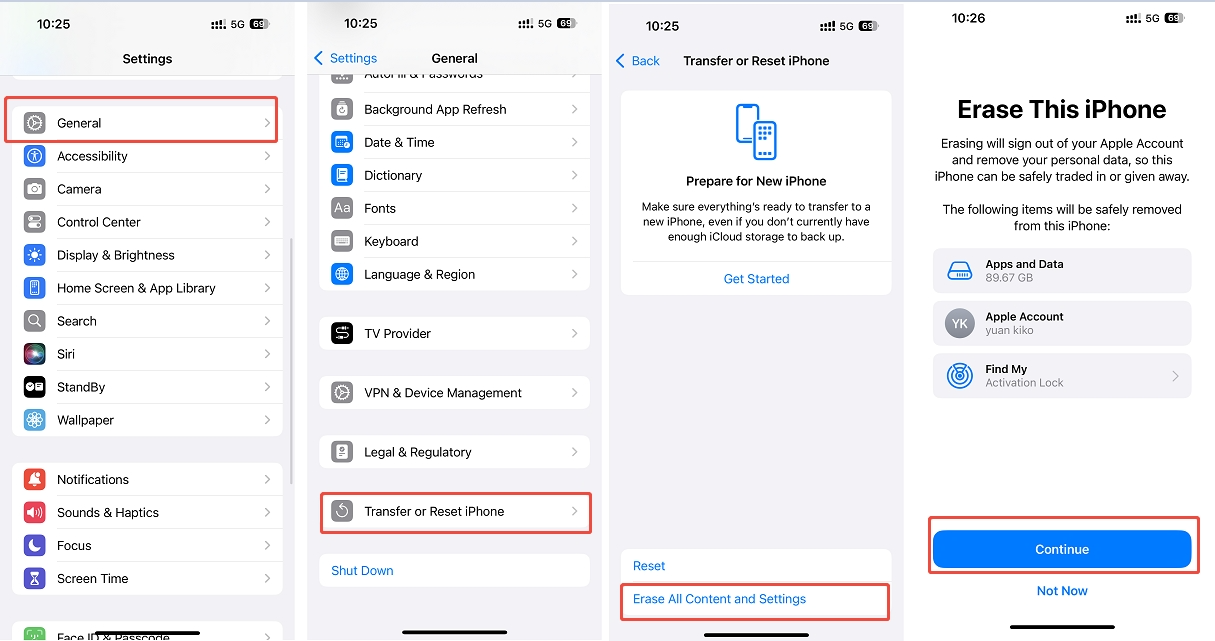
Critical Warning: This method replaces all current iPhone data with the backup version. Any videos, photos, messages, or apps added since the backup will be permanently lost. Only use this nuclear option when the deleted videos' value exceeds everything you'd lose in the restoration.
Alternative iCloud.com Method:
For a less destructive approach, check iCloud.com:
- Visit iCloud.com in a web browser
- Sign in with your Apple ID
- Access Photos to browse your iCloud photo library
- Look for videos that might still exist in the cloud
- Download videos directly to your computer if found
Method 3: iTunes/Finder Local Backup Recovery
If you regularly sync your iPhone with iTunes (Windows/older macOS) or Finder (newer macOS), local backups might contain your deleted videos. This method offers more control than iCloud restoration but still requires complete device restoration.
Steps for Local Backup Recovery:
- Connect your iPhone to the computer where backups are stored
- Open iTunes or Finder, depending on your system
- Select your device when it appears
- Click "Restore Backup" in the device summary
- Choose a backup created before your videos were deleted
- Confirm restoration and wait for completion
Local backups, especially encrypted ones, often contain more complete data than iCloud backups. Encrypted backups preserve Health data, saved passwords, and sometimes maintain better video quality and metadata.
Method 4: Professional Recovery Software - Gbyte Recovery
When Apple's built-in recovery methods fail to retrieve your permanently deleted videos, professional recovery software becomes your most powerful option. The market contains numerous tools promising video recovery, but most fail to deliver genuine results when dealing with truly deleted content.
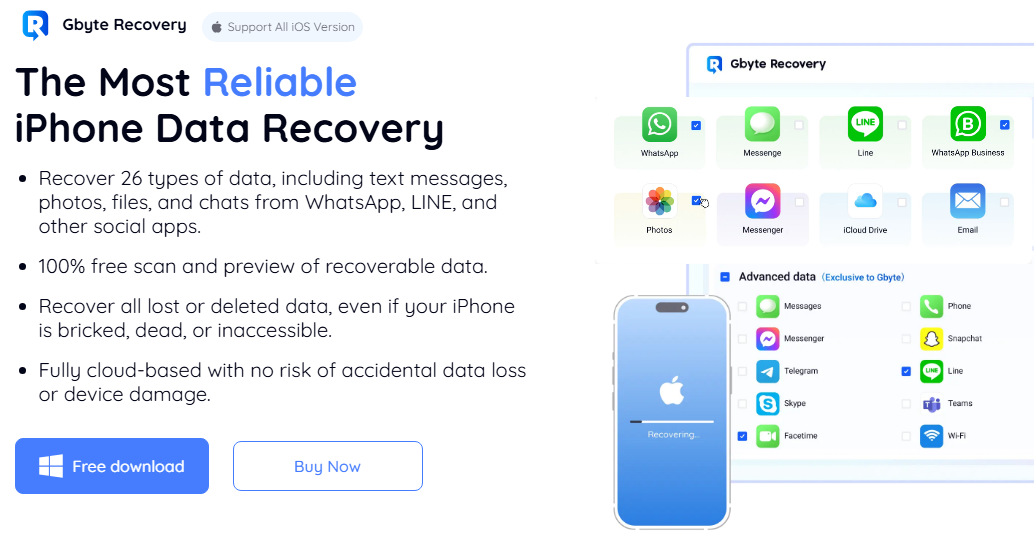
Gbyte Recovery stands as the definitive iPhone data recovery tool for video restoration, employing advanced algorithms specifically optimized for iOS storage systems. Unlike generic recovery utilities that often disappoint users with corrupted files or false positives, Gbyte consistently delivers authentic video recovery results through sophisticated scanning technology.
What Sets Gbyte Recovery Apart:
- Deep Storage Analysis: Gbyte examines raw storage sectors at the hardware level, identifying video file fragments that iOS no longer recognizes. This deep scanning capability can locate videos deleted weeks or even months ago, far beyond what standard recovery methods can achieve.
- Video Format Specialization: The software recognizes and reconstructs dozens of video formats including MOV, MP4, AVI, and HEVC files, maintaining original quality and metadata when possible. This specialization proves crucial for recovering various types of iPhone videos from different sources.
- Preview Before Recovery: Unlike tools that force blind recovery attempts, Gbyte allows you to preview discovered videos within the software interface, confirming they're intact and playable before committing to the recovery process.
Comprehensive Gbyte Recovery Process:
Step 1: Software Installation Download Gbyte Recovery from the official website and install it on your computer. The software supports both Windows and macOS systems with straightforward installation procedures.
Step 2: Recovery Method Selection Launch Gbyte and select "Videos" as your primary recovery target.
Step 3: Deep Scanning Execution Initiate the scanning process, which typically takes 20-40 minutes depending on your iPhone's storage capacity and the chosen scan depth. Gbyte analyzes file system structures, examining sectors for video file signatures and metadata.
Step 4: Video Preview and Verification Once scanning completes, browse through discovered videos using Gbyte's preview feature. You can verify that videos are complete and playable before proceeding with recovery.
Step 5: Selective Video Recovery Choose specific videos or entire categories to recover. Gbyte saves selected videos to your computer in their original formats, organizing them into clearly labeled folders for easy access.
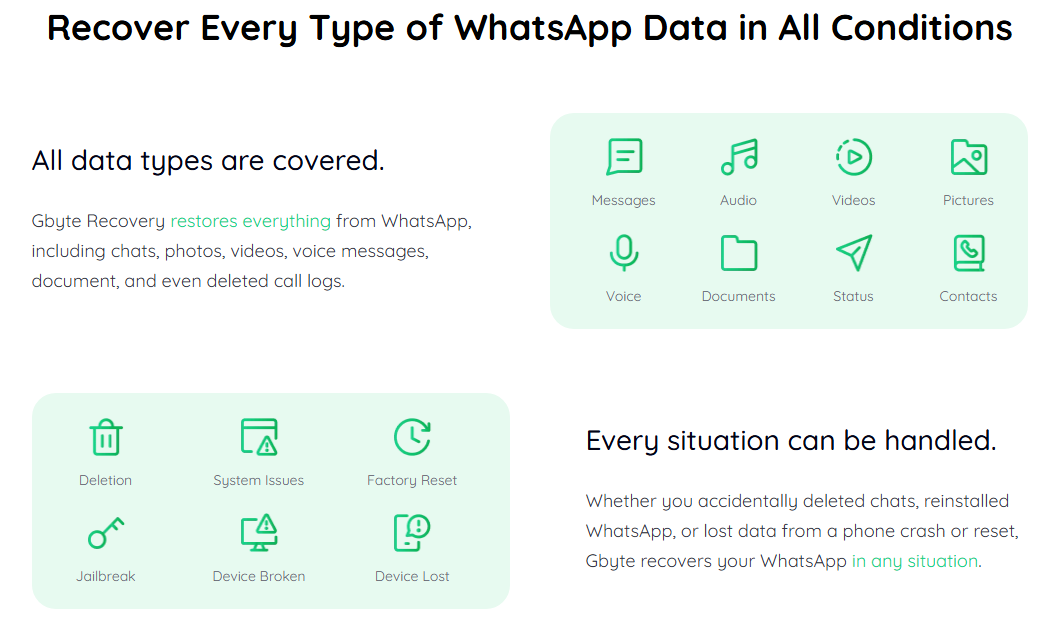
For users dealing with multimedia messaging, Gbyte also functions as comprehensive WhatsApp message recovery software, capable of retrieving deleted video messages and media files from various messaging platforms—a valuable feature when important videos were shared through social apps rather than stored in the Photos library.
Success Rates and Realistic Expectations:
Gbyte Recovery demonstrates impressive success rates across different video deletion scenarios:
- Recently deleted videos (within 30 days): 85-95% recovery rate
- Videos deleted 1-3 months ago: 65-80% recovery rate
- Videos from corrupted storage: 50-70% recovery rate
- Videos from physically damaged devices: 30-50% recovery rate
The software's transparent approach means it won't show corrupted or unplayable videos in recovery results. What you see during preview accurately represents what you'll get in the final recovery.
Method 5: Check Other Devices and Cloud Services
Videos often exist in multiple locations without users realizing it. Before concluding that videos are permanently lost, systematically check alternative storage locations where copies might survive.
Other Apple Devices:
iPad and Mac: If you use the same Apple ID across devices, videos might still exist on other devices, especially if iCloud Photos syncing encountered delays or conflicts.
Apple TV: Videos that were AirPlayed to Apple TV sometimes maintain cached copies that persist longer than iPhone storage.
Third-Party Cloud Services:
Google Photos: Many iPhone users enable Google Photos backup without remembering it. Check photos.google.com for automatically backed-up videos.
Dropbox, OneDrive, or Box: Automatic camera upload features in these services might have preserved copies of your deleted videos.
Social Media Platforms: Videos shared on Facebook, Instagram, or other platforms remain accessible even if deleted from your iPhone.
Method 6: Professional Data Recovery Services
When software solutions fail and videos hold irreplaceable value, professional data recovery laboratories represent the final recovery option. These services employ forensic techniques to extract data directly from iPhone storage chips, bypassing software limitations.
When to Consider Professional Services:
- All software recovery attempts have failed completely
- The iPhone suffered physical damage (water, impact, etc.)
- Videos contain irreplaceable personal or business content
- Legal or insurance requirements necessitate professional recovery documentation
Professional services typically charge $400-1200 depending on the complexity and required expertise. While expensive, they can sometimes recover data that no software solution can access, particularly from physically damaged devices.
Choosing Reputable Services:
Research services carefully, looking for:
- iPhone-specific expertise and clean room facilities
- "No recovery, no fee" policies that reduce financial risk
- Detailed assessment reports explaining recovery possibilities
- Strong privacy policies and data security measures
Prevention Strategies for Future Video Protection
The emotional impact of losing precious video memories creates lasting regret that extends far beyond the technical inconvenience. While the initial shock and panic of discovering deleted videos never fully disappears, understanding that multiple recovery pathways exist provides essential hope during these stressful situations.
Whether dealing with accidentally deleted family videos or important content that vanished during device maintenance, the methods outlined in this guide offer genuine opportunities to recover those irreplaceable digital memories and restore the moments you thought were lost forever.