Say Goodbye to Display Anxiety: Why This 1MB Coffee Mug is the Ultimate Mac Power Tool

You have been there, You plug your Mac into an external monitor, and suddenly everything looks either microscopically small or fuzzier than a 90s VHS tape. You want to close your MacBook lid, but the internal screen refuses to go to sleep. You want to snap your windows like a pro, but macOS forces you to play digital Tetris manually.
So, what do you do? You download five different utility apps. One for window management, one for brightness control, one for keeping your Mac awake, and maybe a shady third-party tool just to force a decent resolution. Suddenly, your menu bar looks like a crowded highway, your RAM is crying, and half those apps want a $4/month subscription.
Then here comes DisplayDeck, my friend's built it and send it to me.
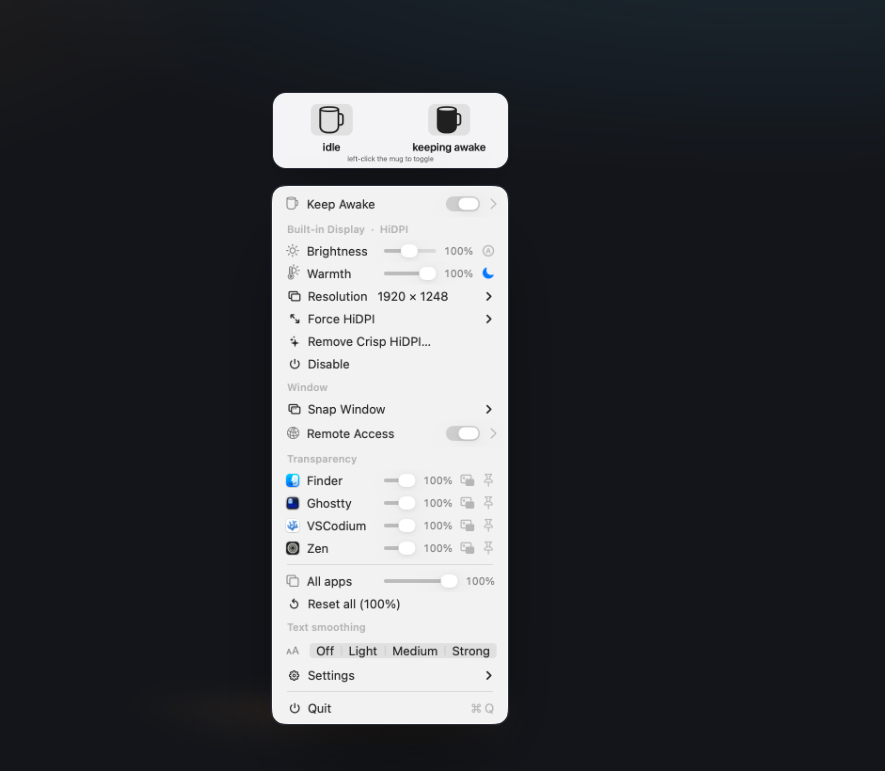
It’s a free, open-source, sub-1MB app that sits quietly in your menu bar as a coffee mug icon. And it basically turns you into the god of your own desktop.
What is DisplayDeck? (And Why Your Mac Needs It)
DisplayDeck isn’t just another utility; it’s a Swiss Army knife built on pure, unadulterated macOS wizardry. Instead of running heavy background daemons or bundling bloated binaries, it hooks directly into Apple's private, undocumented frameworks (CoreGraphics, SkyLight, and DisplayServices).
The result? It does things Apple’s standard System Settings lock away in a vault, all while consuming virtually zero CPU power. No telemetry. No tracking. No "Upgrade to Pro" nag screens. Just pure utility.
The Killer Features You’ll Actually Use
Here is what this tiny coffee mug lets you pull off with a single click:
Total Screen Dictatorship
- Kill the Internal Display: Ever use your MacBook in a clamshell or headless setup, only for the built-in screen to stay awake and kill your performance? DisplayDeck flips it off at the window-server level. If you unplug your external monitor, it has a built-in failsafe that instantly wakes your laptop screen back up so you're never left in the dark.
- Force Crisp HiDPI: Say goodbye to blurry text on external monitors. It forces gorgeous, retina-scaled resolutions onto displays that don't natively support them. It even includes a "Text Smoothing" toggle to fix fuzzy antialiasing.
Blinding Brightness & F.lux-Style Warmth
- Push Past 100% Brightness: Using an XDR or HDR panel? DisplayDeck uses an EDR overlay trick to push your panel’s brightness past its normal limits—perfect for working outside or under harsh office lighting.
- Auto-Night Warmth: Adjust your color temperature smoothly down to a cozy 3400 K using gamma ramps. It has a hands-free night schedule toggle that automatically eases the strain on your eyes at dusk.
Window Snapping & Picture-in-Picture
- Instant Tiling: Drag windows to the edge or use global
⌃⌥shortcuts to snap apps into halves, thirds, or quarters. No complex setup required. - Make Any Window Float: Want to watch a video while coding? Or fade a reference document into the background? You can adjust the opacity of any app, add a frosted-glass blur, or shrink a window into a floating, always-on-top corner.
Caffeine Boosts & Remote Access
- Keep It Awake: Left-click the coffee mug icon to instantly trigger an IOKit assertion. Your Mac stays awake indefinitely, or for a custom duration you choose.
- Remote In from Anywhere: It features a built-in, auto-reconnecting reverse-SSH tunnel. You can securely screen-share or SSH into your other Macs from anywhere without configuring bloated third-party remote desktop software.
                        [ DISPLAYDECK ]
                               │
       ┌───────────────────────┼───────────────────────┐
       ▼                       ▼                       ▼
 🖥️ DISPLAYS              🎨 VISUALS              ⚙️ SYSTEM
 ├─ Disable Screens      ├─ Over-100% Brightness ├─ Window Snapping
 └─ Force HiDPI Scaling  └─ Night Warmth Ramps   └─ Reverse-SSH Remote
How to Get It (The Clean Way)
Because this is a true open-source community project, you don't have to deal with the App Store's limitations. You can install it instantly using Homebrew:
brew install --cask oabdrabo/tap/displaydeck
The Homebrew cask automatically handles the installation, moves it to your /Applications folder, and bypasses the pesky Gatekeeper quarantine flags for you. If you’re a purist, you can also clone the repository and build it directly from the source code via your terminal.
The Final Note
DisplayDeck proves that good software doesn't need to be heavy, expensive, or invasive. It respects your privacy, preserves your RAM, and gives you absolute control over your digital environment.
If you're ready to clean up your menu bar and supercharge your display workflow, give the coffee mug a spin. Your eyes (and your Mac) will thank you.