Why Your Mac Blocks Apps, and How to Fix It in 10 Seconds, The Terminal Hack Apple Doesn’t Want You to Know (But Should)

By a 20-Year macOS Veteran & Unix/Linux Lifelong Hacker!
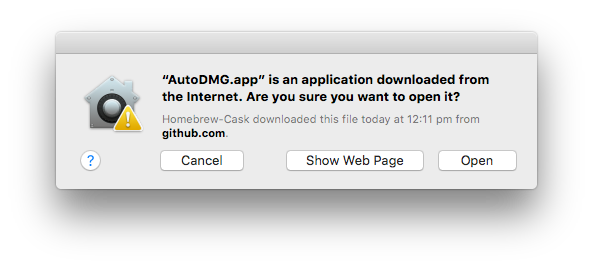
If you’ve ever downloaded an app from the internet, especially one not from Apple’s App Store, and gotten that dreaded warning:
"App is damaged and can't be opened. You should move it to the Trash."
I just downloaded apps in 3 GB why should I move them to trash and I need them?
…then you’ve just met com.apple.quarantine , the silent gatekeeper behind macOS security.
And today, I’m going to show you how to safely bypass it. Not with fear. Not with risk. With knowledge.

One a side-note, If you are looking for open-source to replace all overpriced macOS apps, we encourage to visit OpenTosh.com which is a directory for open-source macOS Apps, and then learn how to run them safely on your macOS, without this annoying message.
Is macOS Security Protecting You… or Controlling You?
Apple blocks apps from the internet to protect users from malware, but it also locks out innovation. As a 20-year macOS veteran and developer, I’ve seen how this "security" throttles freedom.
Tools like xattr -d com.apple.quarantine aren’t hacks, they’re rights. When you know what you’re running, you shouldn’t need permission from Apple. This isn’t about bypassing security, it’s about reclaiming control. The real change? You decide what runs on your machine.
“The best tools aren’t in the App Store. They’re in the Terminal.”
Unlock the Hidden Power of macOS: Why sudo xattr -d com.apple.quarantine Is a Game-Changer (And Why You Should Know It)What Is com.apple.quarantine? (Spoiler: It’s Not Just a Warning)
When you download an app from the web, whether it’s a dev tool, a niche productivity app like NoteGen.app, or even a custom script, macOS automatically tags it with a special extended attribute: com.apple.quarantine.
This isn’t just metadata. It’s macOS’s built-in defense system.
Think of it like this:
- Your Mac says: “Hey, this file came from somewhere outside Apple’s controlled ecosystem. Let me double-check before letting it run.”
- Gatekeeper checks the quarantine flag.
- If it’s there? The app gets blocked, unless you manually override it.
This is File Quarantine, part of Apple’s broader security architecture designed to protect users from malicious downloads.
 Hazem Abbas
But here’s the twist: It’s often too strict, especially for developers, power users, and anyone who values freedom over convenience.
The Terminal Command That Unlocks Freedom
sudo xattr -d com.apple.quarantine /Applications/NoteGen.app
You can change NoteGen.app with any app you downloaded from the internet!
Let’s break it down:
sudo= Because we’re modifying system-level metadata (requires admin rights).xattr= Extended Attributes Tool (yes, macOS has this, and it’s powerful).-d= Delete the attribute.com.apple.quarantine= The specific tag we’re removing./Applications/NoteGen.app= The app path (replace with your app!).
After running this command, your app opens without warnings.
But wait, this is NOT a free pass. You’re disabling a security check. So why do it? Because sometimes, you know better than the system, sometimes not.
Security vs. Privacy: The Real Trade-Off
Here’s where things get interesting.
Why This Matters for Developers & Power Users:
- You build apps, test scripts, or use open-source tools from GitHub.
- You need flexibility, not gatekeepers blocking every third-party binary.
- Tools like Homebrew, Docker, Node.js, Python packages, CLI utilities, all rely on this kind of trust.
“I don’t want my terminal to ask permission every time I run npm install.”Why Normal Users Should Care Too:
- You found a better alternative to a bloated App Store app.
- You value privacy, no tracking, no forced telemetry, no Apple surveillance.
- You want control over your machine, not just a curated experience.
But here’s the elephant in the room…
Why Most Users Don’t Use Terminal (And Why That’s a Problem)
Let’s be honest: Most people don’t touch the Terminal.
They’re afraid of typing commands. They think it’s for "hackers" or "geeks."
But guess what?
Terminal is the real operating system beneath macOS.
It’s where real power lives. Where automation happens. Where you fix problems the GUI can’t solve.
And yet, when they try to open a legit app from the web, they get blocked. They panic. They Google “how to open app on Mac”, and end up downloading another app, or worse, giving up.
This forces them into a trap:
“Only apps from the App Store are safe.”
“So I’ll only use Apple-approved software.”
That’s not freedom. That’s lock-in.
And Apple knows it.
 Hazem Abbas
The Bigger Picture: App Store ≠ Safety. It’s Control.
Apple’s App Store is great for casual users. But it comes with trade-offs:
- Apps must follow Apple’s rules (and fees).
- Some tools are banned or delayed.
- Privacy? Sometimes sacrificed for “security.”
- Many apps are overpriced, feature-limited, or slow to update.
Meanwhile, the web is full of amazing, lightweight, privacy-first apps, but they’re blocked by default.
So what’s the solution?
Know your system. Use the right tools. Be informed.
Smart Alternatives & Best Practices (Don’t Just Run Commands Blindly!)
Before you xattr -d, consider these safer options:
Option 1: Right-Click → Open (Safest)
- Right-click the app → “Open”
- A dialog appears: “Are you sure?”
- Click “Open” → It runs once, and macOS stops nagging.
No terminal needed.
Still respects security.
Perfect for occasional use.
Option 2: Use spctl to Check Trust
spctl --assess -vv /Applications/NoteGen.app
See if it’s flagged. Helps debug issues without deleting attributes.
Option 3: Automate with Scripts (For Devs)
Create a simple .sh script to clean quarantine flags for trusted folders:
#!/bin/bash
for app in /Applications/*.app; do
    sudo xattr -d com.apple.quarantine "$app"
done
echo "Quarantine removed for all apps in /Applications/"
Only run this on apps you fully trust.
Why Every Developer, Power User, and Even Casual Mac Fan Should Know This
Because your Mac is yours.
- You paid for it.
- You own it.
- You should be able to run whatever you want, safely and responsibly.
Knowing how to use xattr, sudo, chmod, and ls -l@ isn’t about being “techy.”
It’s about autonomy.
And as someone who’s used macOS since 2003, and Linux/Unix since the early 2000s, I can tell you:
The most powerful users aren’t the ones who click icons. They’re the ones who type commands.
They understand their systems. They fix problems. They innovate.
They don’t wait for Apple to approve everything.
Final Thought: Knowledge Is Power, And It’s Free
You don’t need to be a programmer to benefit from knowing sudo xattr -d com.apple.quarantine.
You just need to care about:
- Your privacy
- Your freedom
- Your time
- Your right to choose
So next time you download a cool new app, and it won’t open, don’t panic.
Open Terminal. Type the command. Run it with confidence.
And remember:
Security is important.
But so is control.
And knowledge? That’s the ultimate superpower.
Got questions? Drop them below!
Want more deep-dive macOS secrets? Subscribe. I’ll keep sharing the real tricks behind the curtain.
Your Mac isn’t just a device. It’s your playground. Own it.
 Hazem Abbas
 Hazem Abbas
 Hazem Abbas
 Hazem Abbas
 Hazem Abbas