Digital Hygiene 101: A Doctor’s Prescription for Your Online Health


I still remember the first time I fully understood the importance of a sterile field. In medical school, "scrubbing in" wasn't just about washing your hands; it was a ritual. You follow a strict process, fingertips to elbows, specific timing, no touching anything unsterilized afterwards, because skipping even a small step could introduce an infection that brings down the whole system (the patient).
Ironically, my life in tech follows the exact same principle. I’ve been a Linux enthusiast since I installed Slackware in late 1990s, and if there is one thing that connects medicine and software engineering, it is this: Prevention is always cheaper than the cure.
Just as we practice personal hygiene to prevent disease, we must practice Digital Hygiene to prevent data breaches, identity theft, and the slow "rot" of our digital lives. Whether I’m diagnosing a patient or debugging a Next.js application, the mindset is the same.
Here is my prescription for keeping your digital life healthy.
What is Digital Hygiene?
Digital Hygiene (or Cyber Hygiene) refers to the routine habits and practices you perform to keep your devices, data, and online identity secure and organized. It isn't a one-time "fix", you don't brush your teeth once a year and expect no cavities. Similarly, you cannot install an antivirus once and assume you are safe forever. It is a continuous maintenance routine designed to preserve your digital sovereignty.
The Checklist: 5 Steps to Digital Sovereignty
1. Password Management (The First Line of Defense)
Stop reusing passwords. If you use the same password for your banking and that random forum you signed up for in 2015, you are one data breach away from a disaster.
- The Fix: Use a Password Manager (like Bitwarden, which you can even self-host).
- The Habit: Enable Two-Factor Authentication (2FA) everywhere. It’s the digital equivalent of a double-lock on your door.
The following list contain the best open-source password managers that we collected, tested, and used over the years.
 Hazem Abbas
 Hazem Abbas
 Hazem Abbas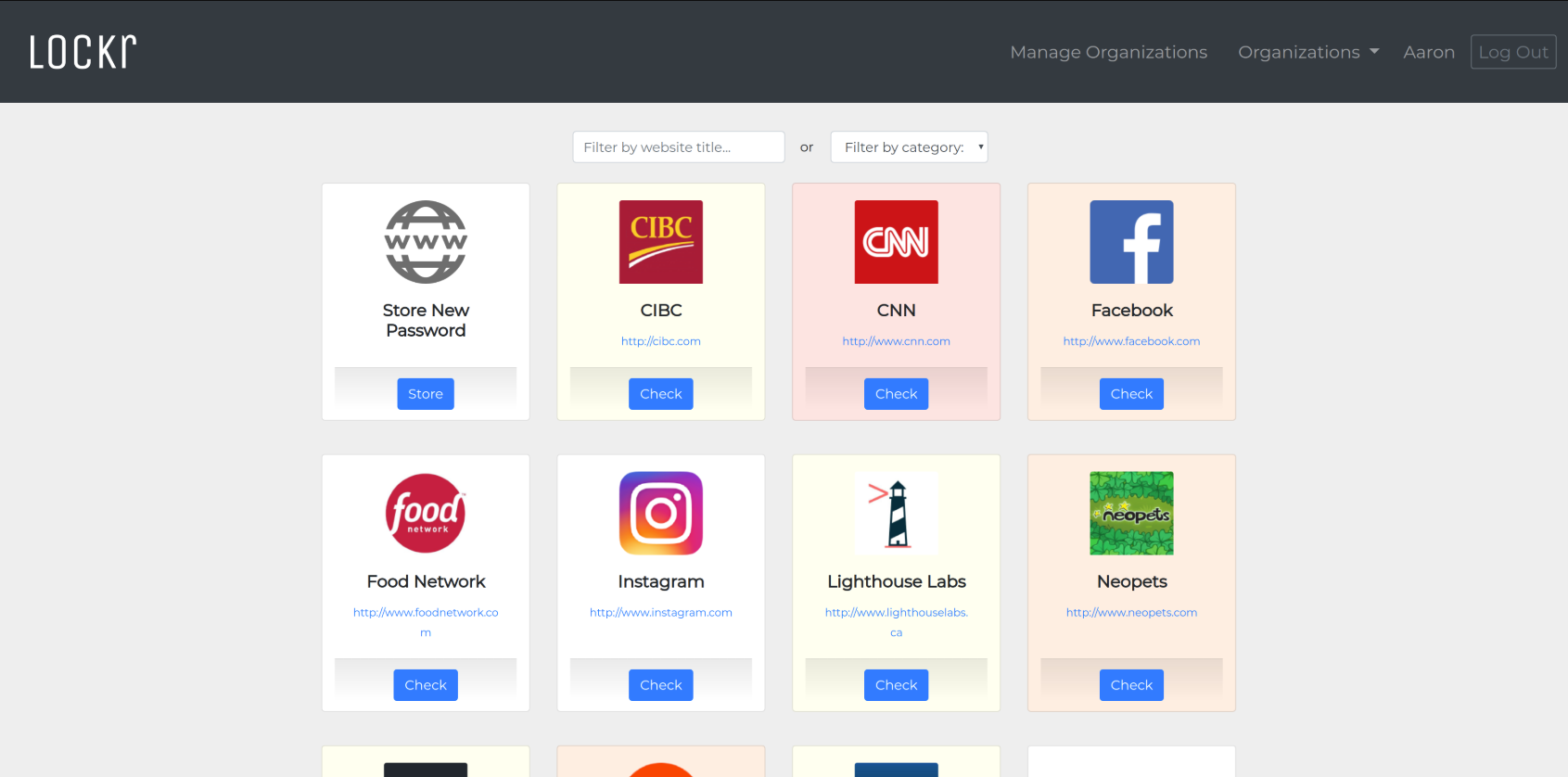
2. Software Updates (Your Digital Vaccination)
I know getting that "Update Available" notification is annoying, especially when you are in the middle of a workflow or deep in a coding session. But in the security world, we call those updates "patches" for a reason, they cover up the holes that hackers use to get in.
Think of an outdated system like a house with the windows smashed out during a zombie apocalypse. When you ignore an update, you aren’t just being lazy; you are effectively inviting the zombies and vampires inside. You are rolling out the red carpet for malware to suck the life out of your data.
The Fix: Treat updates like vaccinations. They provide herd immunity for your network.
- For macOS Users: Don't fall for the myth that "Macs don't get viruses." That hasn't been true for a decade. Apple pushes critical security responses for a reason. If you ignore them, you are leaving the castle gates wide open.
- For Linux Users: I know we love our uptime, and rebooting feels like defeat. But running
sudo apt update && sudo apt upgrade(orpacman -Syuif you're brave) isn't just maintenance, it's hygiene. A kernel vulnerability doesn't care how cool your tiling window manager is. - Don't Forget the Apps: It’s not just the OS. An outdated browser extension, an old version of Zoom, or that PDF reader you installed three years ago? Those are the "trojan horses". Hackers love them because nobody checks them.
Rule of Thumb: If it connects to the internet, it needs to be updated. Period.
3. Digital Decluttering (Removing "Zombie Apps")
Over time, our devices accumulate "digital plaque." Unused apps on your phone or old accounts you haven't logged into for years are liabilities. They track your data and provide attack vectors.
- The Fix: Once a month, review your apps. If you haven't used it in 6 months, delete it. Close old accounts to reduce your digital footprint.
On macOS it is important as it takes SPACE.
4. Data Backups (The 3-2-1 Rule)
As a developer & a doctor, I’ve stared at the black screen of death, and I can tell you that hard drives fail, SSDs degrade, and ransomware strikes without warning. I have seen years of family photos and critical source code vanish into the void simply because someone trusted a single drive. In the world of hardware, it is rarely a matter of if disaster strikes, but when.
The Fix: You need a continuity plan: the 3-2-1 Rule. Keep 3 copies of your critical data. Store them on 2 different media types (for example, your local machine and an external SSD).
Finally, ensure 1 copy is offsite, like an encrypted cloud service. If a fire or theft wipes out your physical office, that offsite backup is the heartbeat that keeps your digital life alive.
 Hazem Abbas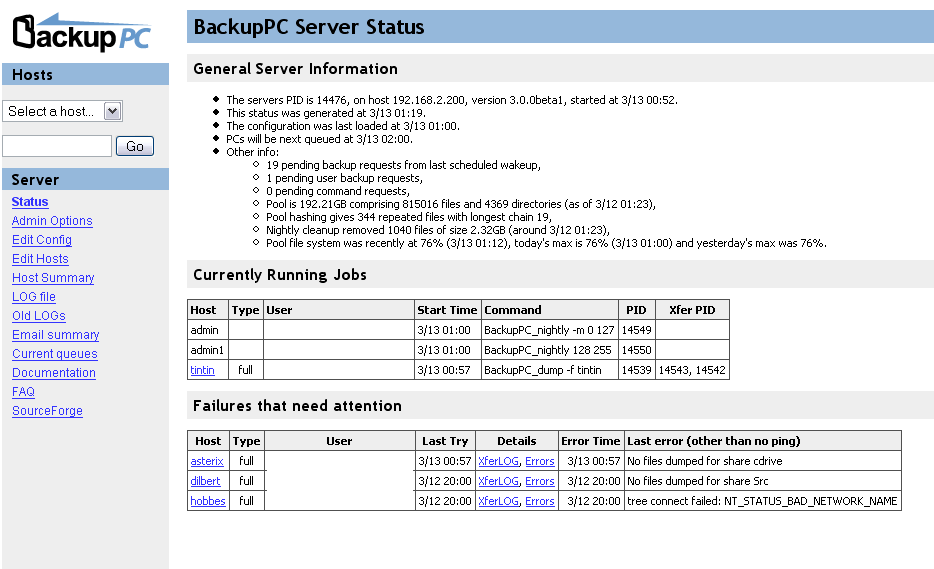
 Hazem Abbas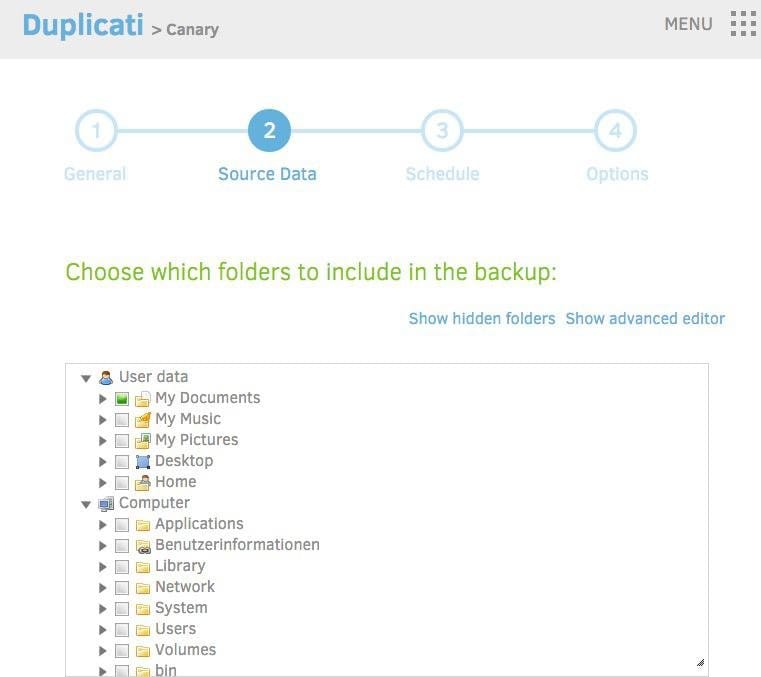
 Hazem Abbas
Special Round: Essential Security Tips for Windows Users
Look, everyone knows I’m a Linux guy. To me, Linux isn't just an OS; it's a mindset. But I know many of you rely on Windows for work or gaming. Windows is the biggest target for malware simply because it has the most users. If you are on Windows, you need to be extra vigilant.
Here is how to lock it down:
- Debloat the System: Windows comes pre-installed with "bloatware" (ads, trial games, unnecessary tracking). Use tools or scripts to remove these. Less software installed means fewer security holes.
- Enable BitLocker: If your laptop gets stolen and your drive isn't encrypted, your password won't stop a thief from reading your data. Turn on BitLocker (device encryption) immediately.
- Respect Windows Defender: You rarely need expensive third-party antivirus software anymore. Windows Defender is actually quite capable now, but only if you keep it updated and don't turn it off.
- Create a Standard User Account: Don't use your PC as an "Administrator" for daily tasks. Create a standard account for daily use. If malware tries to install itself, it will fail because it won't have the permissions to write to system files.
 Hazem Abbas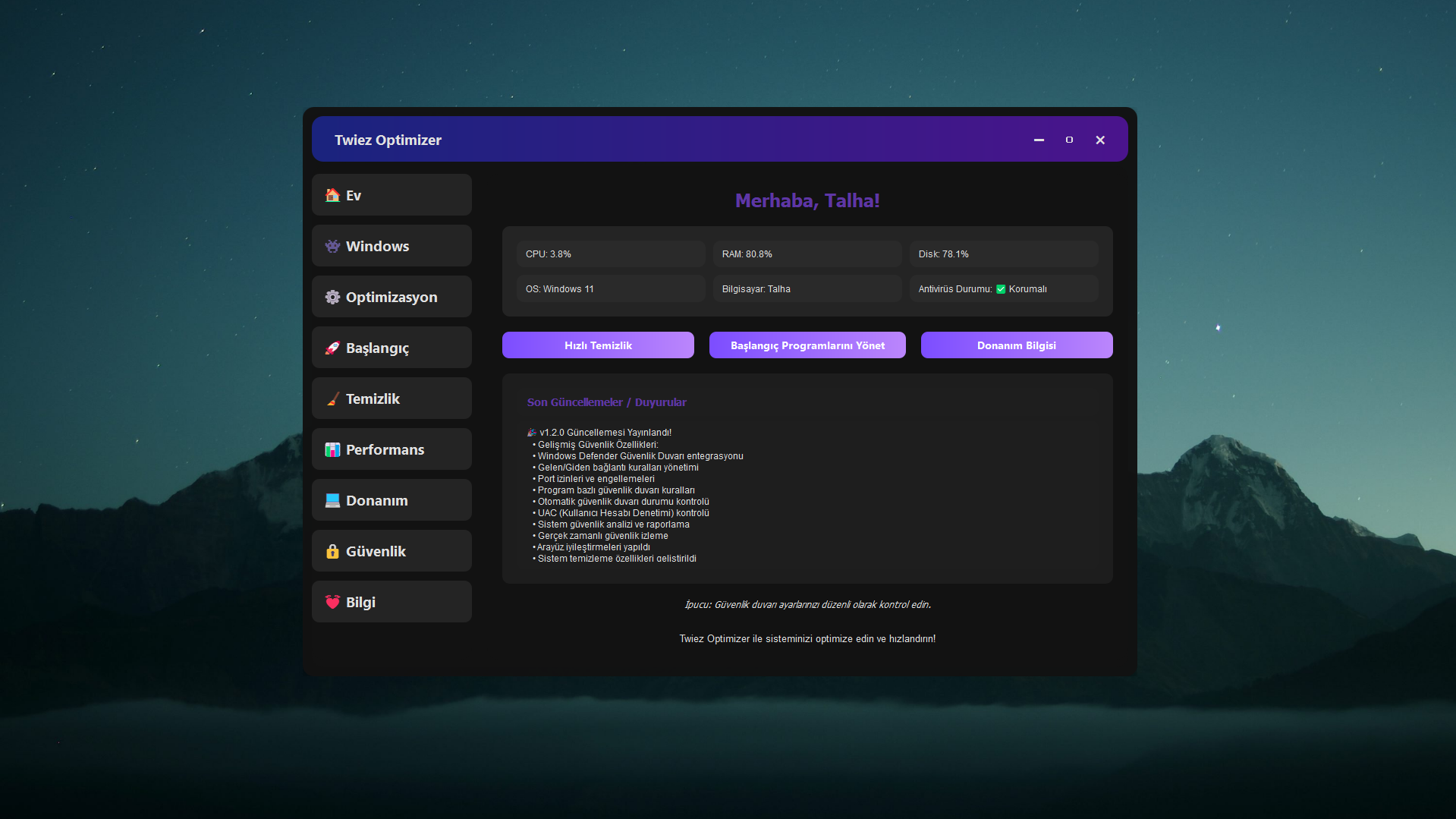
 Hazem Abbas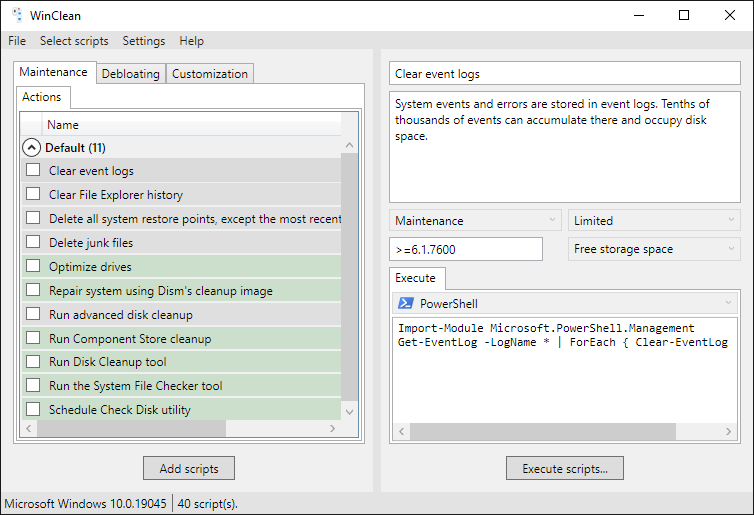
Conclusion: Make it a Lifestyle
Whether it's creating a sterile environment for a patient or a secure environment for your data, the goal is safety and longevity. Start small. Pick one of these habits today, maybe just changing that one weak password you’ve been using for everything, and build from there.
Stay safe, stay private, and keep your systems clean.
 Hazem Abbas
 Hazem Abbas