Stop Alt-Tabbing with Gemini CLI; Terminal-Based AI Co-Pilot!

If you are a developer, a sysadmin, or just someone who lives in the command line, you know the struggle. You are deep in the "flow state," debugging a complex script or orchestrating a deployment, and you hit a wall. You need an answer.
Usually, this means:
- Take your hands off the keyboard.
- Grab the mouse.
- Alt-Tab to a browser.
- Open a new tab.
- Navigate to an AI chat interface.
- Paste your error or type your question.
- Copy the answer.
- Alt-Tab back.
- Paste it into your terminal.
It breaks your focus. It ruins the flow.
All this can be avoided with Gemini CLI.
What is Gemini CLI?
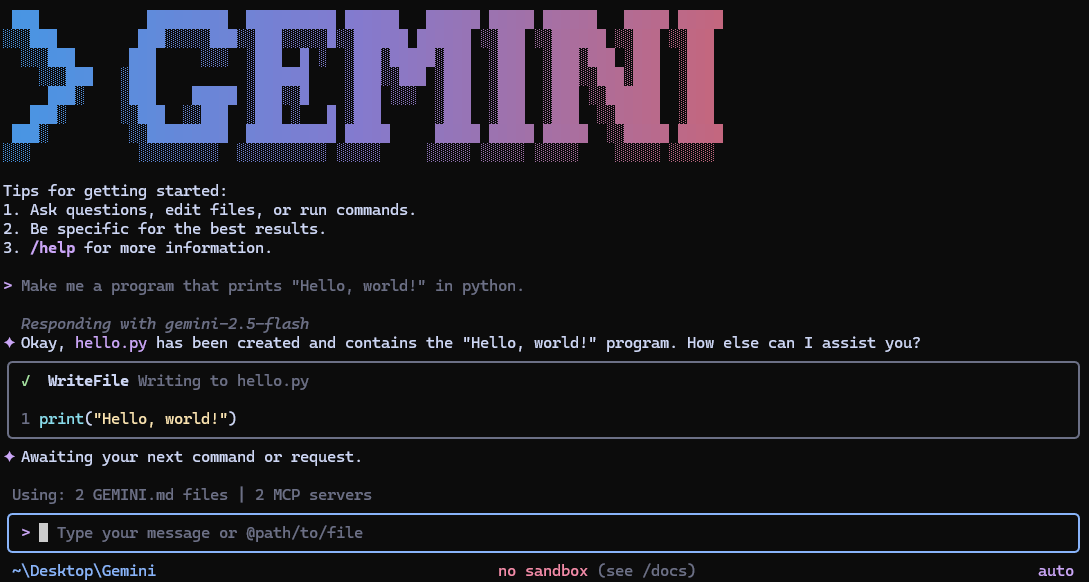
Gemini CLI is an open-source AI agent that brings the massive power of Google’s Gemini models directly into your terminal. It isn't just a wrapper for a chat window; it is a tool designed to integrate AI into your actual workflow, piping data in and out, manipulating files, and executing shell commands.
At its core, Gemini CLI is a lightweight, terminal-first entry point to Google’s Gemini models. But calling it a "chatbot" does it a disservice. It is an agent.
Built on Node.js and open-sourced under the Apache 2.0 license, it is designed for developers who want the smartest AI model right next to their git commands and compilers.
It effectively removes the friction between "thinking" and "doing." By living in your terminal, it has context that a browser window never will. It can see your file structure, it can read your logs, and with the right permissions, it can even fix your code for you.
Features
1. Code Understanding & Generation
- Query and edit large codebases efficiently.
- Generate new applications from PDFs, images, or sketches using multimodal input.
- Debug issues and troubleshoot code using natural language instructions.
2. Automation & Integration
- Automate operational tasks (e.g., querying pull requests, handling complex rebases).
- Connect advanced capabilities via MCP servers, including:
- Media generation with Imagen, Veo, or Lyria.
- Run workflows non-interactively in scripts for seamless automation.
3. Advanced Capabilities
- Real-time information grounding via built-in Google Search.
- Conversation checkpointing: Save and resume complex sessions.
- Custom context files (
GEMINI.md) to personalize behavior for specific projects.
4. GitHub Integration (via Gemini CLI GitHub Action)
- Pull Request Reviews: Automated, contextual feedback and suggestions.
- Issue Triage: Intelligent labeling and prioritization based on content analysis.
- On-demand Assistance: Mention
@gemini-cliin issues/PRs for help with debugging, explanations, or task delegation. - Custom Workflows: Build automated, scheduled, or on-demand workflows tailored to team needs.
The "Cool Factor": Why Developers Are Switching
Why use this over the web interface? The features listed in the documentation paint a picture of a tool built by developers, for developers.
1. Access to Gemini 2.5 Pro (The Heavy Hitter)
This isn't a watered-down version of the model. Gemini CLI gives you access to Gemini 2.5 Pro.
The killer feature here is the 1 Million Token Context Window.
Most CLI tools choke if you try to feed them a large file. With 1M tokens, you can literally pipe your entire project documentation, a massive legacy codebase, or a month’s worth of server logs into the prompt and ask, "Where is the memory leak?" and it will actually read the whole thing.
2. It Has "Hands" (Built-in Tools)
Most AI chats are text-in, text-out. Gemini CLI has tools.
- File Operations: It can read and write files. You can ask it to "Refactor
server.jsto use ES6 syntax" and it can propose the changes directly. - Shell Commands: It can execute terminal commands.
- Google Search Grounding: Need to know the latest version of a library or a recent bug fix? It can fetch live info from the web, so its knowledge isn't cut off at a training date.
- Web Fetching: It can scrape and read URLs you provide.
3. The Generous Free Tier
We are used to API tools costing money immediately. Gemini CLI is surprisingly generous right out of the gate.
- 60 requests per minute
- 1,000 requests per day
- Free with a personal Google account.
For 99% of individual developers, this is effectively unlimited. You can use it as your daily driver without hitting a paywall.
4. MCP Support (The Future of AI Extensions)
This is the nerdy, exciting part. It supports MCP (Model Context Protocol). This means the CLI is extensible. You can plug in custom integrations that allow Gemini to talk to your database, your internal APIs, or other local tools.
It transforms the CLI from a tool into a platform.
Real-World Use Cases
So, how does this actually look in your day-to-day? Here are three scenarios where Gemini CLI shines.
For the Software Engineer
The Scenario: You are working on a legacy codebase you didn't write. The documentation is sparse, and you are staring at a 2,000-line Python file that is throwing a cryptic error.
The Gemini CLI Workflow:
Instead of copying chunks of code into a browser, you simply run:
gemini "Analyze detailed_log.txt and main.py. Explain why the data processing stream fails after the 500th record and suggest a fix."
Because of the 1M token window, you can feed it the whole file. Because of the File Operations tool, it can read them natively. It analyzes the logic, spots the unhandled exception, and outputs the corrected code block right in your terminal.
Bonus: You can ask it to generate the unit test for the fix immediately after.
For the Content Creator / Technical Writer
The Scenario: You have just finished a coding project and need to write the README.md and a release blog post, but you are burned out on writing.
The Gemini CLI Workflow:
You don't leave your editor. You navigate to your project root and type:
gemini "Read all .ts files in src/ and generate a comprehensive README.md. Include installation instructions, a features list, and a 'Getting Started' section. Save it to README.md."
The agent reads your actual code to understand what the application does, then writes the documentation for you. It’s accurate because it’s based on the source code, not your memory of it.
For the DevOps Engineer
The Scenario: You are managing a Linux server and need to write a complex shell script to rotate logs and backup a database to S3, but you always forget the specific tar flags and AWS CLI syntax.
The Gemini CLI Workflow:
gemini "Write a bash script to zip /var/log/app, append the date to the filename, upload it to s3://my-bucket/backups, and delete local files older than 7 days. Explain the flags used."
Gemini generates the script. You can then ask it to "explain this part" or "make it safer by adding error handling." It turns the terminal into a pair-programming session for sysadmins.
How to Install Gemini CLI
Getting started is ridiculously easy. You don't even technically need to install it if you want to just try it out.
Prerequisites:
- Node.js version 20 or higher (This is important! Check with
node -v) - macOS, Linux, or Windows
Option 1: The "I Just Want to Try It" Method (npx)
If you have Node installed, you can run it instantly without cluttering your system:
npx https://github.com/google-gemini/gemini-cli
This downloads and executes the runner in one go.
Option 2: The Permanent Install (npm)
If you want gemini available as a global command in your terminal (recommended):
npm install -g @google/gemini-cli
Option 3: For Mac/Linux Users (Homebrew)
If you prefer managing packages via Brew:
brew install gemini-cli
Staying on the Bleeding Edge
One of the cool things about this project is its transparent release cadence. The team treats it like a serious product.
- Stable Releases: Published every Tuesday at 20:00 UTC. This is the safe bet. It includes bug fixes and vetted features. Use the
@latesttag.
Preview Releases: Published every Tuesday at 23:59 UTC. If you want to test features that haven't been fully vetted yet (and don't mind the occasional bug), you can install the preview version:Bash
npm install -g @google/gemini-cli@preview
Conclusion: Why You Should Install This Today
We are moving toward a world where AI isn't a destination (a website you visit) but a utility (something that runs in the background of everything you do).
Gemini CLI is a massive step in that direction. It respects the developer's environment. It doesn't force you into a GUI. It brings the smartest model Google has to offer—Gemini 2.5 Pro—and drops it right into your shell.
Whether you use it to write commit messages, debug complex stack traces, or just ask "how do I undo the last git commit" without googling it for the 100th time, it is an invaluable addition to your toolkit.
Give it a spin. Your Alt and Tab keys will thank you.

 google-gemini