Zsh-z: Quickly Jump to Your Most Frequent Directory (Linux and macOS) - Supercharge Your Terminal

If you live in the terminal, as most developers do, navigating deep directory trees with cd can quickly become tedious.
Enter Zsh-z, a blazing-fast, intelligent directory jumper that learns your habits and gets you where you need to go with just a few keystrokes.
What Is Zsh-z?
Zsh-z is a pure-Zsh implementation of the popular rupa/z tool, but rebuilt from the ground up for speed, stability, and seamless integration with the Zsh shell. It uses the concept of “frecency”, a blend of frequency and recency, to predict which directory you’re most likely to jump to based on your usage patterns.
Type z proj and land in ~/work/my-awesome-project. Type z docs and you’re in ~/client/docs-v3. The more you use it, the smarter it gets.
 Hazem Abbas
Key Benefits for Developers
- Massive Time Savings: Skip typing long paths. Jump to deeply nested folders in seconds.
- Zero Context Switching: Stay in flow without fumbling through
cd ../../... - Works Out of the Box: Drop-in replacement for
rupa/z,your existing~/.zdatabase is fully compatible. - Tab Completion Sorted by Relevance: Hit
z <TAB>and see your most relevant directories first—not alphabetically.
Why Zsh-z Stands Out
- Pure Zsh, No External Dependencies: Unlike
rupa/z, which relies onawk,sed,sort, and other tools, Zsh-z uses only Zsh built-ins. This means faster performance, especially on Windows subsystems like WSL, Cygwin, and MSYS2, where it’s often over 100% faster. - Rock-Solid Stability: A custom file-locking mechanism prevents race conditions and database corruption, a common pain point in
rupa/z. - Developer-Friendly: Lightweight, open-source, and easy to install via Oh My Zsh, Zinit, or manually.
Perfect for CLI Power Users
For developers who spend hours in the terminal, Zsh-z isn’t just a convenience, it’s a productivity multiplier. Whether you’re juggling microservices, client projects, or config files across dozens of directories, Zsh-z cuts through the noise and gets you where you need to be, fast.
Try it once, and you’ll never go back to cd.
Install it today and reclaim seconds that add up to hours over your coding career. Your future self will thank you.
How to Install Zsh-z
Zsh-z is easy to install and works with most Zsh plugin managers. Choose the method that matches your setup:
Manual Install:
Clone the repo and source it in your ~/.zshrc:
git clone https://github.com/agkozak/zsh-z ~/.zsh-z
echo 'source ~/.zsh-z/zsh-z.plugin.zsh' >> ~/.zshrc
Make sure compinit is loaded for tab completion:
autoload -U compinit; compinit
Zinit, Zplug, Znap, Zim, Prezto, etc.:
All major plugin frameworks are supported. For example, with Zinit:
zinit load agkozak/zsh-z
Antigen:
Add this line to your ~/.zshrc:
antigen bundle agkozak/zsh-z
Oh My Zsh:
Zsh-z is now included by default! Just add z to your plugin list in ~/.zshrc:
plugins=(git z)
Or, for the latest version from GitHub:
git clone https://github.com/agkozak/zsh-z ${ZSH_CUSTOM:-~/.oh-my-zsh/custom}/plugins/zsh-z
Then use plugins=(git zsh-z).
After installing, restart your shell or run source ~/.zshrc.
How to Use Zsh-z
Once installed, Zsh-z runs silently in the background, learning your directory habits as you navigate with cd.
- Useful flags:
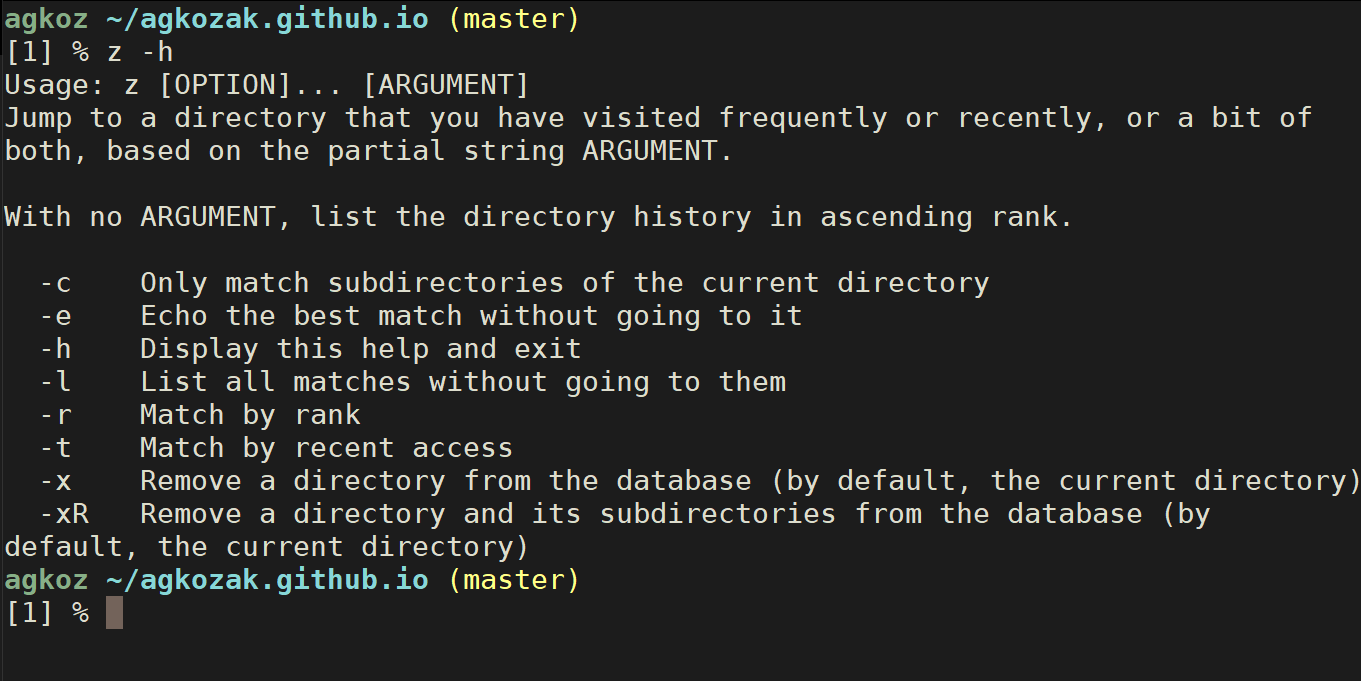
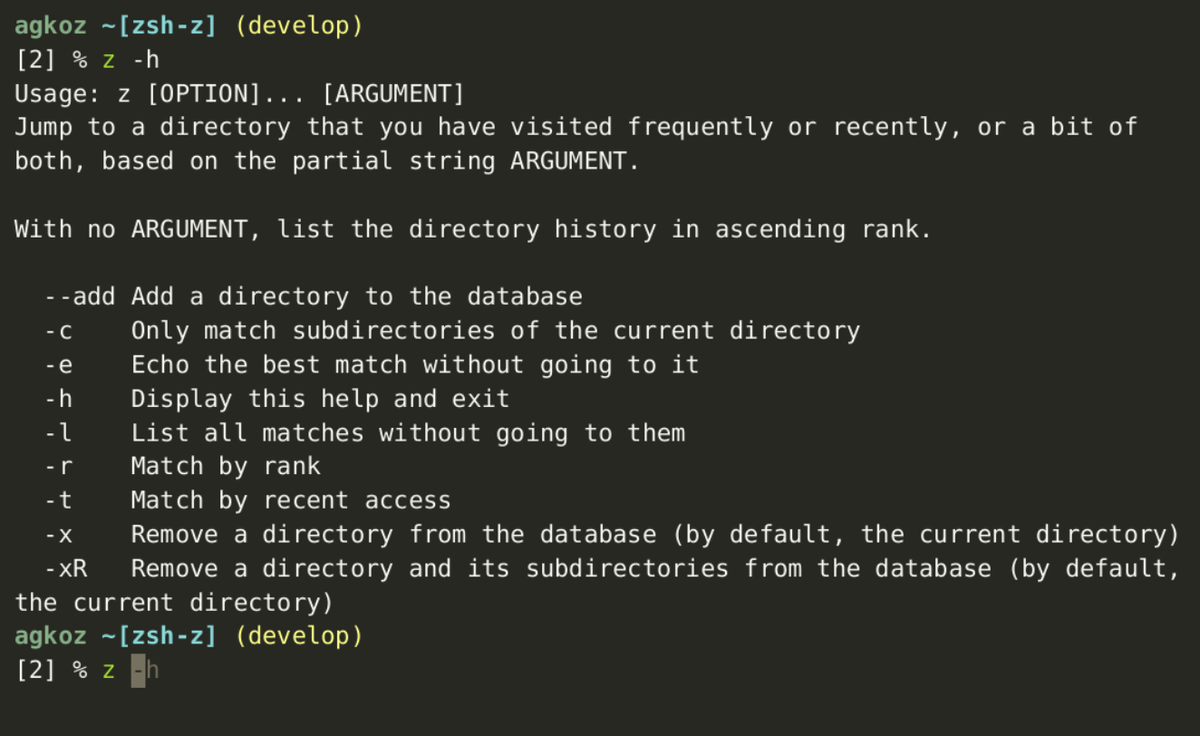
z -l— List all matching directoriesz -e proj— Print the best match without changing directoryz -x— Remove current directory from the databasez -xR— Remove a directory and all its subdirectories
Tab completion:
Press Tab after z to see frecency-ranked suggestions:
z doc<TAB> # Shows matching directories sorted by usage
Jump to a frequent directory:
Type a partial name and let Zsh-z do the rest:
z proj        # Might go to ~/work/my-project
z doc         # Could land in ~/Documents
Zsh-z uses the same ~/.z database as rupa/z, so you can switch between them seamlessly (e.g., use Zsh-z in Zsh and rupa/z in Bash).
The more you use it, the smarter it gets—soon, you’ll navigate your entire filesystem with just a few keystrokes! 🚀
Supported Platforms
- macOS
- Linux
License
MIT License
Resources & Downloads
 agkozak