
Organizr: The Ultimate Docker Dashboard for Managing Your Server Services

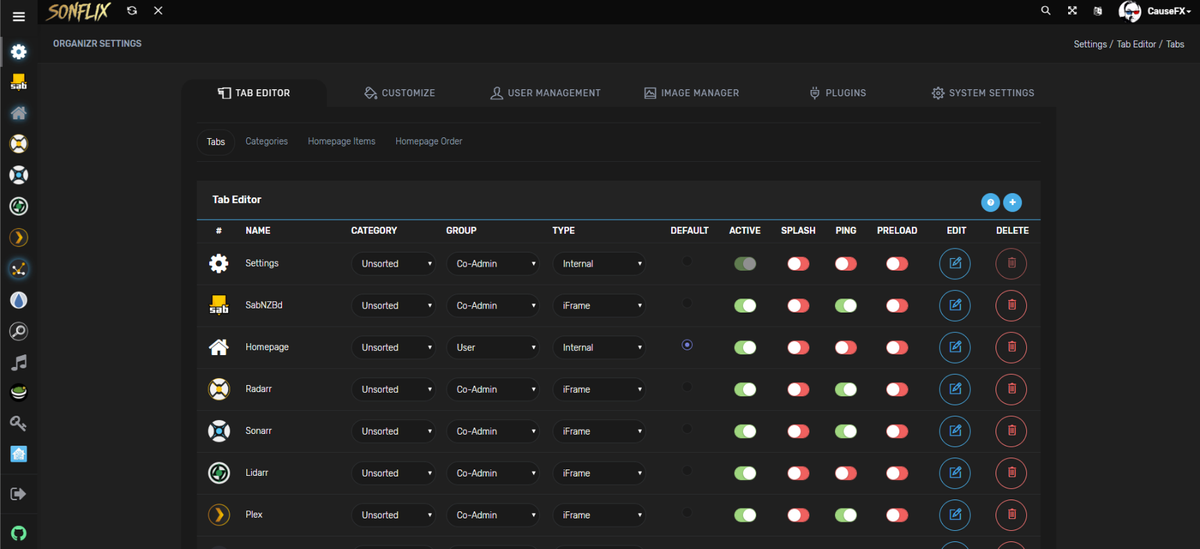
If you're running multiple services on your home server or VPS , like Sonarr , Radarr , Jellyfin , qBittorrent , or Plex , you know how messy it can get trying to keep track of IP addresses , ports , and bookmarks . What if you could bring all of them into one clean dashboard and access them from a single web page ?
What is Organizr?
That’s where Organizr comes in, a free, open-source, multi-user dashboard built for people who manage multiple server services and want a centralized, beautiful interface to access them all.
In simple words, Organizr is a responsive, customizable dashboard that lets you add tabs for each service you're running. Each tab loads in an iframe , so you can access your services without ever leaving the page .
It supports user authentication , guest access , and even integration with Plex, Emby, LDAP, and sFTP , so you can control who sees what.
Best of all? It's free , open source , and actively maintained by a passionate community.
While the only downside for me that it is written with PHP, It is not hard to install and configure easily using Docker!
Who Is Organizr For?
Organizr is perfect for:
- Home server enthusiasts running multiple apps like Plex, Sonarr, Radarr, and more.
- Developers who manage multiple local or remote services.
- Sysadmins who want a single pane of glass for their tools.
- Tech-savvy users who want to share services securely with friends or family.
Whether you're using Docker , Synology , Unraid , or a Linux VPS , Organizr fits right into your stack.
Key Features of Organizr
Organizr is packed with features that make managing your server easier and more efficient:
- Custom Tabs: Add any service by URL (e.g., http://localhost:8989 for Sonarr)
- User & Guest Support: Create accounts or allow guest access
- iFrame Toggle: Enable or disable iframe for any tab
- Mobile-Friendly: Works great on phones and tablets
- Keyboard Shortcuts: Navigate faster with hotkeys
- Multiple Authentication Methods: Login via Plex, Emby, LDAP, or sFTP
- Theme Customization: Choose from multiple themes or create your own
- Fail2Ban & Nginx Auth_Request Support: For advanced security
- Quick Access Tabs: Jump directly to services via URL hash (e.g.,
yourdomain.com/#Sonarr) - User Management Console: Create, delete, and promote users
- Email Recovery: Forgot your password? Get a reset link via email
Why You Should Use Organizr
Here’s why Organizr stands out in the sea of server dashboards:
- All-in-One Interface: Forget juggling dozens of browser tabs or bookmarks. Organizr gives you a single point of access for all your services.
- Secure & Private: You control who gets access, from full user accounts to guest access , and even registration passwords to prevent spam signups.
- Customizable UI: Make it your own with custom themes , logo uploads , and color palette control.
- Easy to Install: Whether you're using Docker , Apache , or Nginx , Organizr is easy to set up and get running in minutes.
How to Install Organizr Using Docker
Installing Organizr with Docker is the easiest and most popular method. If you're new to Docker, don't worry, we’ll walk you through everything step by step.
🧾 Step 1: Install Docker
Before installing Organizr, you need to have Docker and Docker Compose installed on your system.
For Ubuntu:
sudo apt update
sudo apt install docker.io docker-compose -y
For Debian:
sudo apt update
sudo apt install docker.io docker-compose -y
For macOS or Windows:
Use Docker Desktop from https://www.docker.com/products/docker-desktop
Once installed, you're ready to move on.
🧱 Step 2: Create the Docker Container
Run the following command to create the Organizr container:
docker create \
  --name=organizr \
  -v <path to data>:/config \
  -e PGID=<gid> -e PUID=<uid> \
  -p 80:80 \
  -e fpm="false" \
  -e branch="v2-master" \
  organizr/organizr
Replace <path to data>, <gid>, and <uid> with your local directory and user/group IDs.
Pro Tip: You can find your UID and GID by running id in the terminal.🧪 Step 3: Start the Container
docker start organizr
You can now access Organizr by visiting http://localhost in your browser.
License
The best thing about this amazing app is, it is released under the GPL-3.0 License.