Advanced Threat Detection and Rootkit Malware Eradication
Learn how to detect and remove rootkit malware on your Mac. Simple steps, real warning signs, and safe removal methods that work.


Most malware is like a burglar breaking a window. But a rootkit is like someone secretly getting a copy of your house key and living in your home. You don’t see it or hear it, but it’s there. Typical viruses show obvious signs and slow your computer. A rootkit hides files and processes, and tricks your system to act like everything is normal. That’s exactly why it’s so dangerous.
The name comes from the idea of “root” access, which means full control over a system. Rootkit virus removal is a big deal because it’s not just about deleting a file. You’re dealing with something that hides itself, and can reinstall itself. This type of malware may have deep system access, too.
Why Rootkits Are So Hard to Detect
Rootkits don’t just sit in your Applications folder, waiting to be found. They dig deep into the system, and sometimes become a part of core processes that macOS relies on to function. Even the most reliable security tools can miss them, or worse, report that everything is fine with the system.
On the surface, removing a rootkit seems like a standard cleanup job. But these malicious programs don’t play by fair rules. There are different ways to remove rootkit malware, but you should know that basic virus removal steps often aren’t enough. When the infection is designed to persist or hide across system layers, your computer needs in-depth analysis to find and remove it.
Let’s get one thing clear right away: Macs can get rootkits. macOS is safer than Windows in many ways, since it has built-in protections. Rootkits are rare on Macs, but they can still come through fake installers, pirated software, and update scams.
Jumping straight into random fixes can make things worse. You could remove the wrong files or skip steps that leave parts of the rootkit behind. This situation needs a careful approach, especially if you’re not sure how deep the infection goes.
Signs Your Mac Might Have a Rootkit
You’re not going to get a clear warning that something is wrong, since rootkits are built to stay hidden. But there are a few subtle signs that point to deeper issues:
Your Mac feels “off” for no clear reason
If your system becomes slower and starts lagging all of a sudden, it’s worth paying attention. This alone doesn’t confirm a rootkit. However, it’s often the first sign that users notice.
Security tools stop working properly
This is a big red flag. You may notice failed scans or warnings that unexpectedly disappear. The security app may also crash or act strangely in another way. It could mean something is interfering in the background.
You notice unfamiliar processes
Seeing processes in Activity Monitor that you don’t recognize isn’t unusual. But if something keeps reappearing after you close it, or you can’t figure out what it does, it’s suspicious.
 Hazem Abbas
How to Detect a Rootkit on Mac
You don’t need advanced tools right away. In many cases, you can spot early signs of a rootkit if you check a few areas in macOS. You won’t instantly confirm it, but you can identify anything that doesn’t make sense.
First, check Activity Monitor
Open Activity Monitor and look through the list of running processes. You’re not expected to recognize everything there, but does something look unusual or use a lot of CPU without a clear reason? If something doesn’t seem right, do a quick search to see if it’s a legit process.
 Hazem Abbas
Review login items and background apps
Go to System Settings to check the apps that are set to launch at startup. Rootkits often rely on persistence, so they try to restart every time your Mac boots. If you see something you don’t remember installing, investigate it.
Check launch agents and daemons
This sounds “techy,” but it’s just another place where apps can auto-start. You can find these in Library folders, like /Library/LaunchAgents.
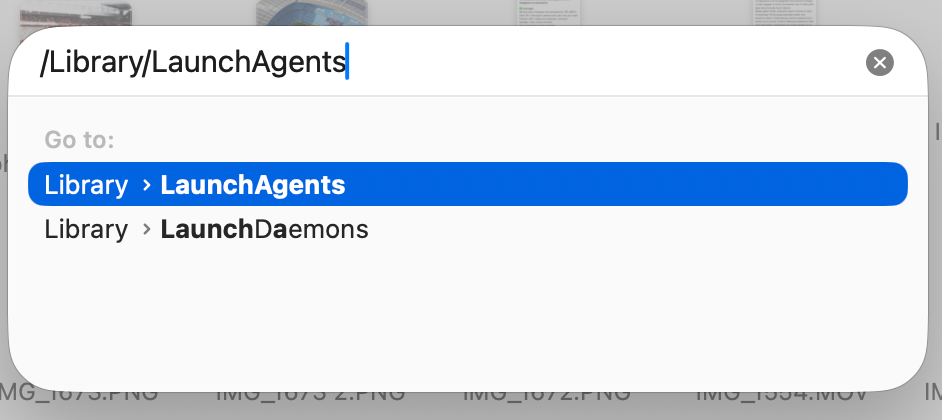
If you notice any unfamiliar files with random names, it’s a warning sign.
Use a trusted security tool
Running a scan makes a lot of sense. A reliable scanner can identify hidden threats or suspicious behavior. This is where the virus removal process starts taking shape, especially if you saw something unusual through manual checks.
Check macOS security features
macOS has protections, such as Gatekeeper and XProtect. Make sure they are enabled and your system is updated. They won’t catch everything, but they can block known threats.
How to Remove a Rootkit from Your Mac
If there’s something suspicious, the next step is to handle it carefully. Rootkits aren’t something you want to rush. Random fixes can leave parts of the infection behind. You need a careful approach, so you can remove it completely.
- Turn Wi-Fi off. If a rootkit is actively communicating with an external server, disconnecting from the Internet will limit it while you’re working on the system.
- Restart your Mac in Safe Mode, so you’ll prevent unnecessary processes from loading. This makes it easier to isolate suspicious activity.
- Go back to your login items and launch agents, and remove the ones that you identified as unusual earlier. Be careful not to delete system files. If you’re not 100% sure about something, double-check.
- Use a security tool to thoroughly scan the system. Virus removal tools can detect hidden components that aren’t visible through manual checks.
- If the issue persists, you can reset parts of the system:
- Remove unknown browser extension
- Clear system caches
- Review all apps that are installed
- If absolutely necessary, a clean macOS reinstall is a reliable solution. It’s not the fastest option, but it will remove deeply embedded threats that are hard to eliminate.
Overview
Rootkits aren’t a common threat on Macs, but they are among the hardest ones to deal with. It’s important to stay calm and not rush the process. Take a careful approach, so you’ll completely remove the issue.